Supplier bills filed to the right job
Give your suppliers a private address. Each bill is read and waits for you, matched to its order and job where it can be. File it in one tap, or split it across jobs, stock and the business. On Business and up.
To check, then filed
Buying, Bills holds your bills address, what came in, what is filed and what was set aside.
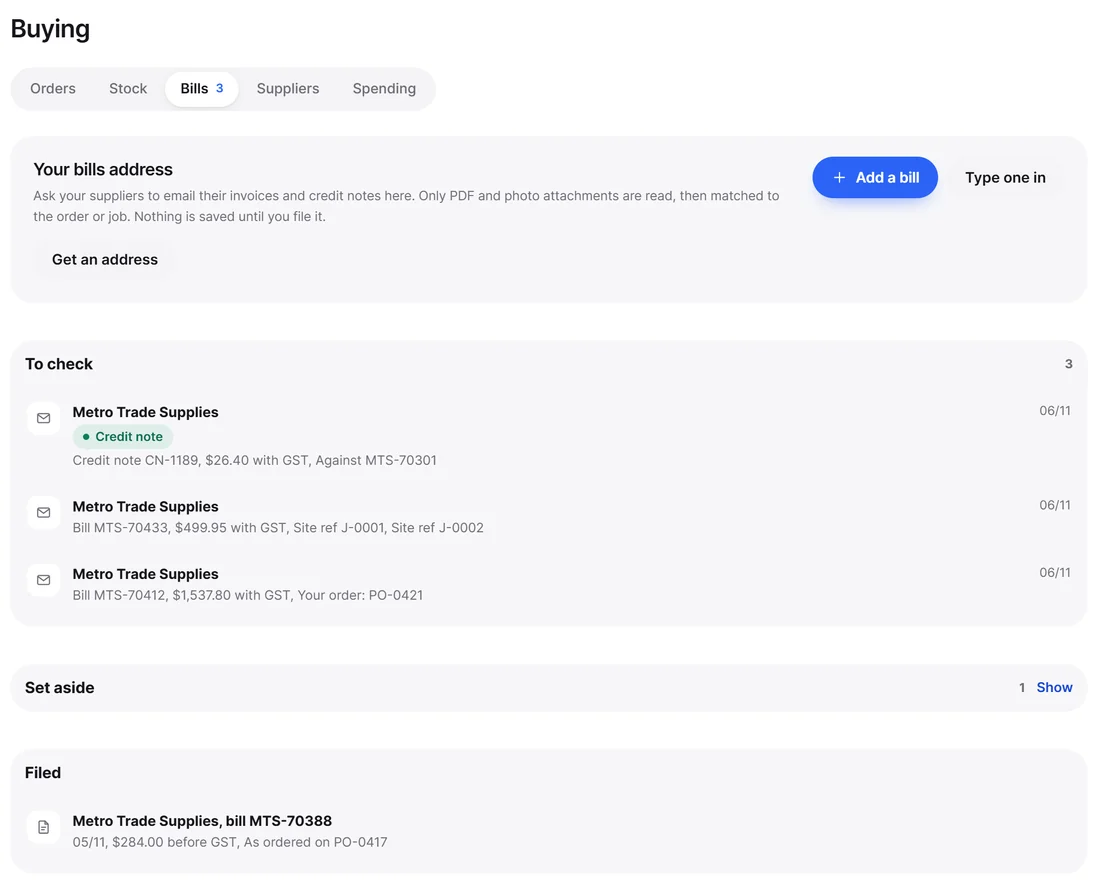
From inbox to job cost
Get an address
Press Get an address in Buying, Bills. Suppliers send to it, or you forward bills yourself. You can also upload a photo or type one in.
It is read once
Each PDF or photo is read and waits in To check, with the supplier, number, amount and lines.
It finds the match
Your order number on the bill, or a job number, or the supplier by name or sender. If a bill number has been filed for that supplier already, you are stopped.
File it
As ordered on its purchase order, Split by line or Split by amount, to jobs, stock or the business. The lines must add up to the bill.
One bill, split across jobs and stock
Check the bill, send each line where it belongs, then File the bill once it all adds up.

What you can do with a bill
Split across jobs
Send one line to one job and the next to another, or put the rest into stock or the business.
Credit notes
A supplier credit lowers the job’s cost, and comes off a charge up invoice as a negative line at the same markup.
Bill it to the customer
On charge up jobs, a split bill’s lines are ready to go on the invoice.
Take it away
Filed something wrong? Take it away and it goes back to To check with its file, unless a line is already on a live invoice.
Your books stay current
Filed bills go to your connected Xero or QuickBooks Online with the file attached.
Ask Whiz
Ask Whiz what is waiting, or tell it to file a bill to a job by line. Undo takes it back.
Junk stays out
- Statements, quotes and orders are set aside and listed with a reason, never filed.
- So are emails with no attachment, other file types, files over 10 MB and the same file twice.
- Spam is dropped. You can always check a set aside one anyway. Set aside ones go after 30 days.
- Up to 5 attachments an email and up to 40 bills a day.
Good to know
- Plans
- Business and Multi brand, with stock, suppliers and purchase orders
- AI actions
- Reading a bill uses one AI action, from your plan’s monthly allowance
- Who
- Owner and office. Technicians do not see bills or job costs
Good to know
Which plans include the supplier bills inbox?
Business and Multi brand. Business is US$13.99 a month or US$119.88 a year, with a 14 day free trial.
Can I split a bill across several jobs?
Yes, by line or by amount, to jobs, stock or the business. The lines have to add up to the bill before it files.
What happens with a supplier credit note?
File it like a bill. It lowers the job’s cost and comes off a charge up invoice at the same markup.
What if the same bill arrives twice?
The same file is set aside, and the same bill number from the same supplier is refused with a warning.
Do I need to use purchase orders?
No. A bill can be filed with or without an order.
Point your suppliers at one address
Try the bills inbox with a 14 day free trial of Business.
Free plan forever. No card needed to start.